Settings
Data directory, sources, download, analysis, appearance, updates.
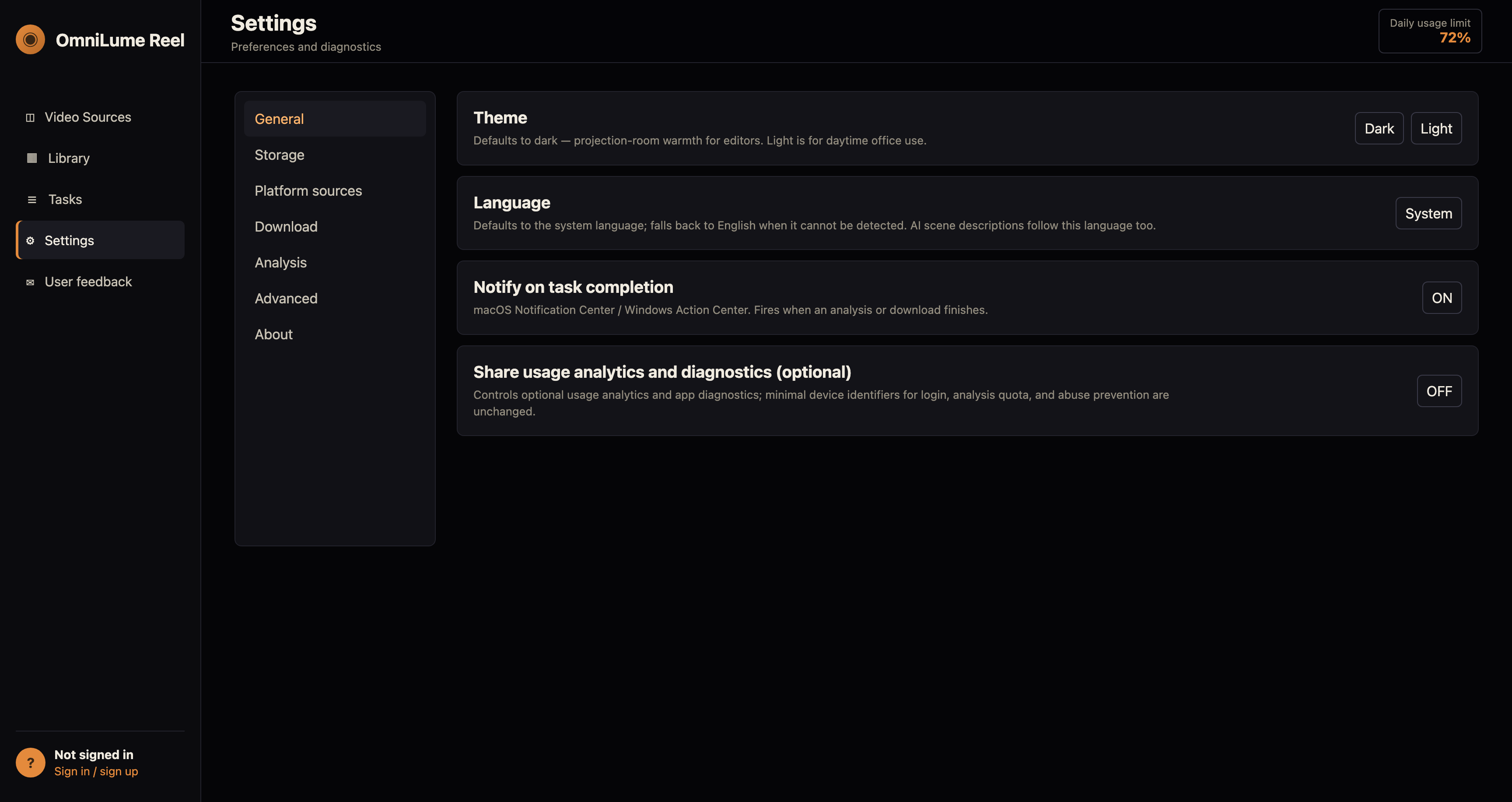
General
- Theme: Defaults to dark — projection-room warmth for editors. Light is for daytime office use.
- Language: Defaults to the system language; falls back to English when it cannot be detected. AI scene descriptions follow this language too.
- Notify on task completion: macOS Notification Center / Windows Action Center. Fires when an analysis or download finishes.
- Share usage analytics and diagnostics (optional): Controls optional usage analytics and app diagnostics; minimal device identifiers for login, analysis quota, and abuse prevention are unchanged.
Not sent:
- Does not send: video titles, URLs, search terms, file paths, media content, scene descriptions, transcripts, browser cookies, email addresses, passwords, or account content. Diagnostics try to remove local paths; raw events are retained for at most one year.
Storage
- Data directory: Stores the database, logs, cache and thumbnails. Restart required after changes; existing data is not moved.
- Output directory: Where exported videos and materials land. Defaults to OmniLumeReel under the system Movies/Videos folder; can point at an external SSD.
- Clear cache: Removes downloaded temporary files and intermediate thumbnails. Does not affect your library or analysis results.
Platform sources
Choose which platforms are used by platform search. Disabled platforms are skipped on the Add Video page; pasted links are still checked by URL.
Download
If you cap to e.g. 480p and the site only offers 720p+, the lowest available will be picked.
Analysis
- Frame sampling interval: Sample one frame every N seconds. Smaller = finer scene detection but linearly more AI calls and slower analysis. A 10-min video: 2s ≈ 300 frames, ~8 min; 5s ≈ 120 frames, ~3 min. Editing: 1–2s; quick previews: 5–10s.
- Analysis window size: Video duration per AI call. Larger windows reduce call count but produce coarser per-window descriptions. Recommended 60s.
- Window overlap context: Extra seconds of context added before and after each analysis window to handle shots crossing boundaries. Scene ownership is assigned by midpoint to avoid duplicates. Default 15s; set 0 to disable.
- AI reasoning effort: "High" = best quality, slowest. "Low" ≈ 2–3x faster but with noticeably terser scene descriptions. Drop to "medium" first if analysis feels slow.
- AI window concurrency: How many windows from one video can be sent to AI analysis at the same time. Default is 5; raising it can speed up long videos but increases service concurrency and retry risk.
- Concurrent tasks: How many videos process in parallel. Default is 2; drop to 1 when CPU/bandwidth is tight, or use 3–4 on strong machines and fast networks.
Advanced
- Current version
- Check for updates
- Download and install
- Automatically check for updates
- Automatically download updates
About
This app is a local desktop video asset manager. Downloads, transcoding, analysis, indexing, and task management run on your device; when platform content needs to be accessed, the app sends requests to that platform using cookies from the browser where you are already signed in.