Quick Start
Confirm the basics now. You can change them later in Settings.
1. Quick setup
- Language: Defaults to the system language; falls back to English when it cannot be detected. AI scene descriptions follow this language too.
- Software statement: Please review and accept this statement before continuing to use OmniLume Reel.
- Share usage analytics and diagnostics (optional): When on, this helps us understand version distribution and usage trends, and diagnose crashes. When off, these optional reports are not sent; the minimal device identifiers needed for login, analysis quota, and abuse prevention are unchanged.
- Theme: Defaults to dark — projection-room warmth for editors. Light is for daytime office use.
- Output directory: Where exported videos and materials land. Defaults to OmniLumeReel under the system Movies/Videos folder; can point at an external SSD.
tip
Stores the database, logs, cache and thumbnails. Restart required after changes; existing data is not moved. Where exported videos and materials land. Defaults to OmniLumeReel under the system Movies/Videos folder; can point at an external SSD.
2. Import local files
Choose one or more video files. Each file enters the analysis queue.
/Users/me/Videos/city night view.mp4
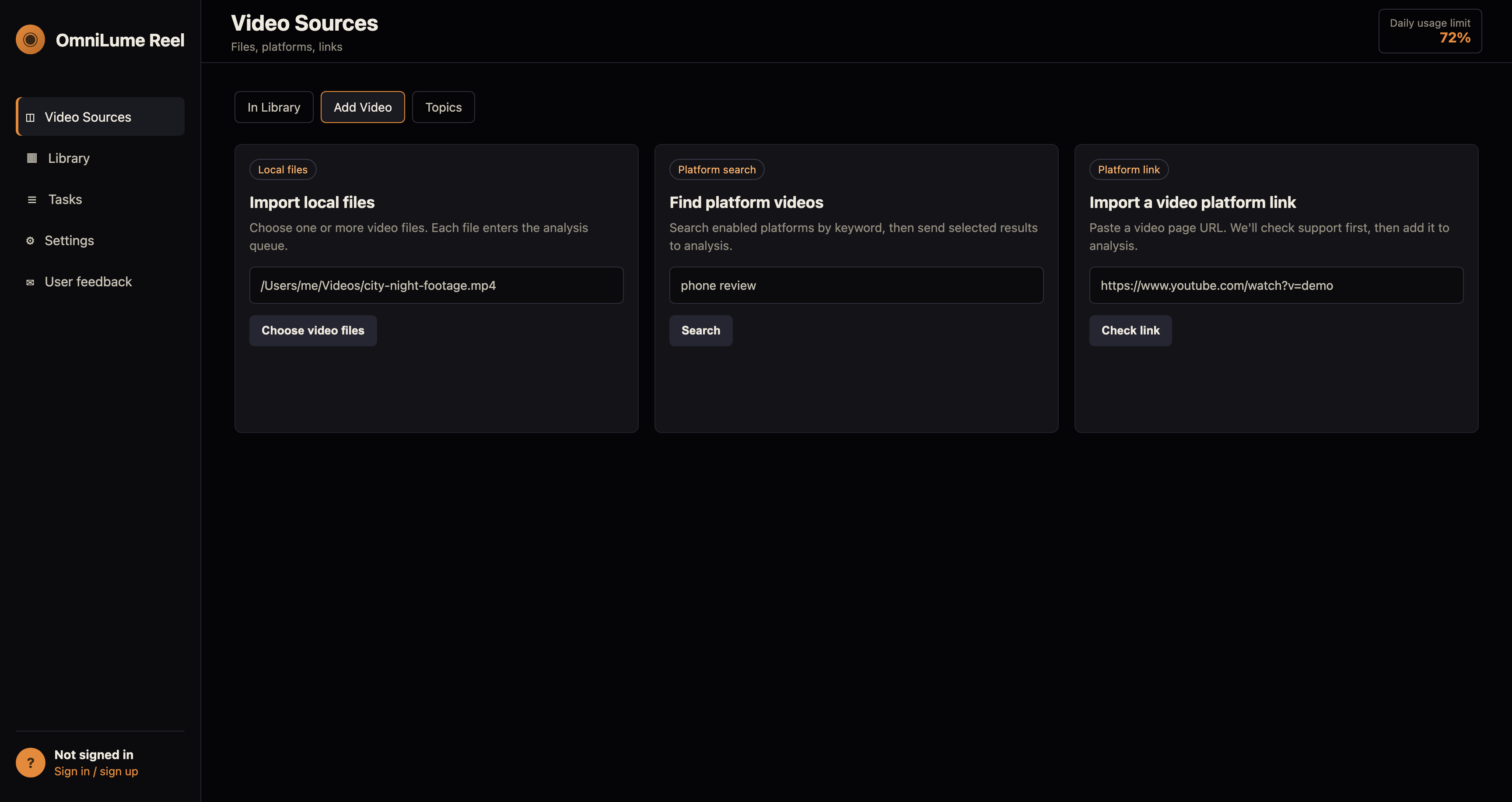
3. Find platform videos
Example:
phone review
city night view
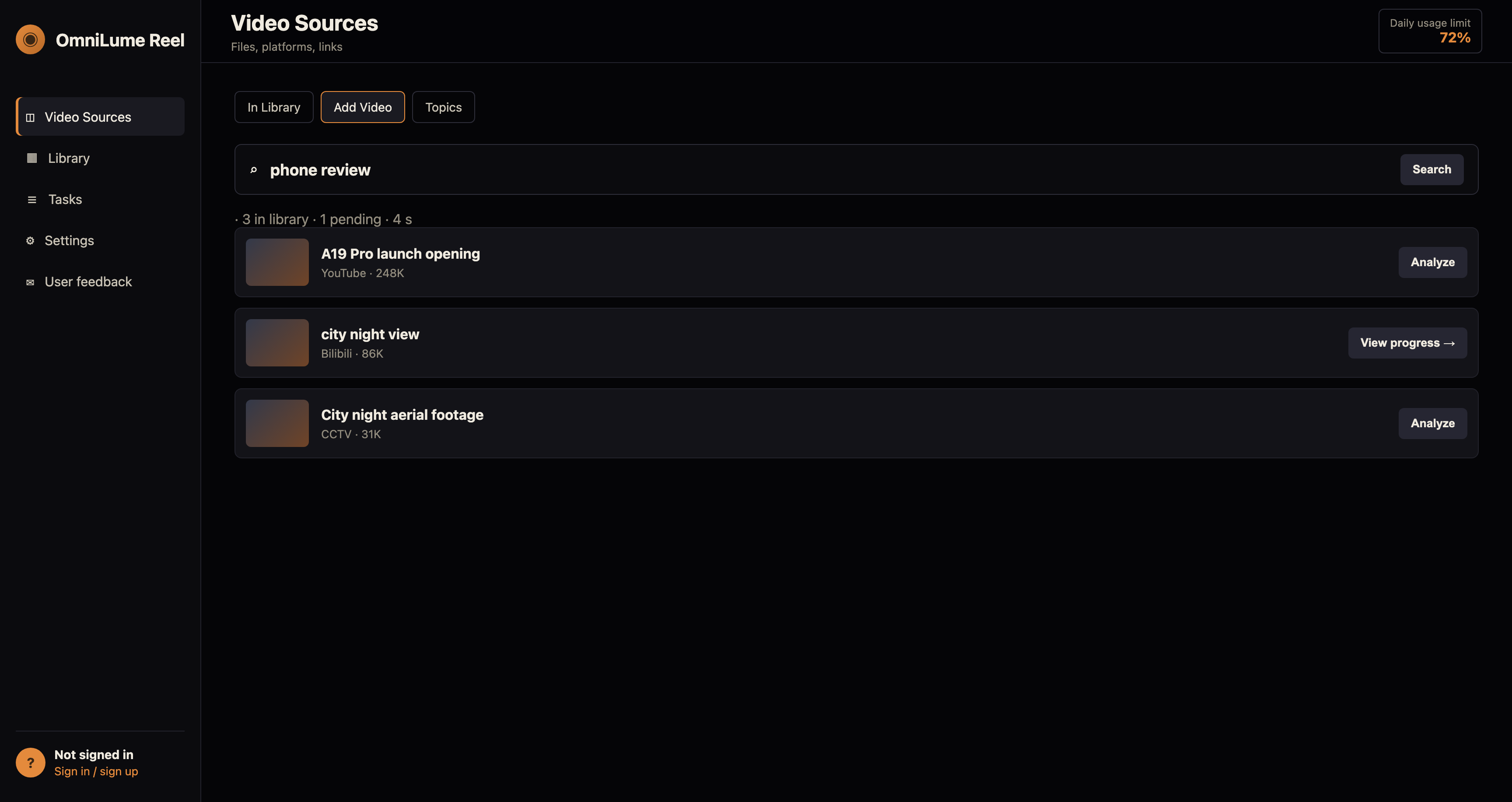
info
Press ↵ to search enabled platforms. Results are interleaved by platform.
4. Import a video platform link
Paste a video page URL. We'll check support first, then add it to analysis.
https://www.youtube.com/watch?v=example
5. Tasks
Progress: Prepare visuals → Analyze content → Organize content → Ready to play.
6. Scene search · semantic
speaker showing a chip
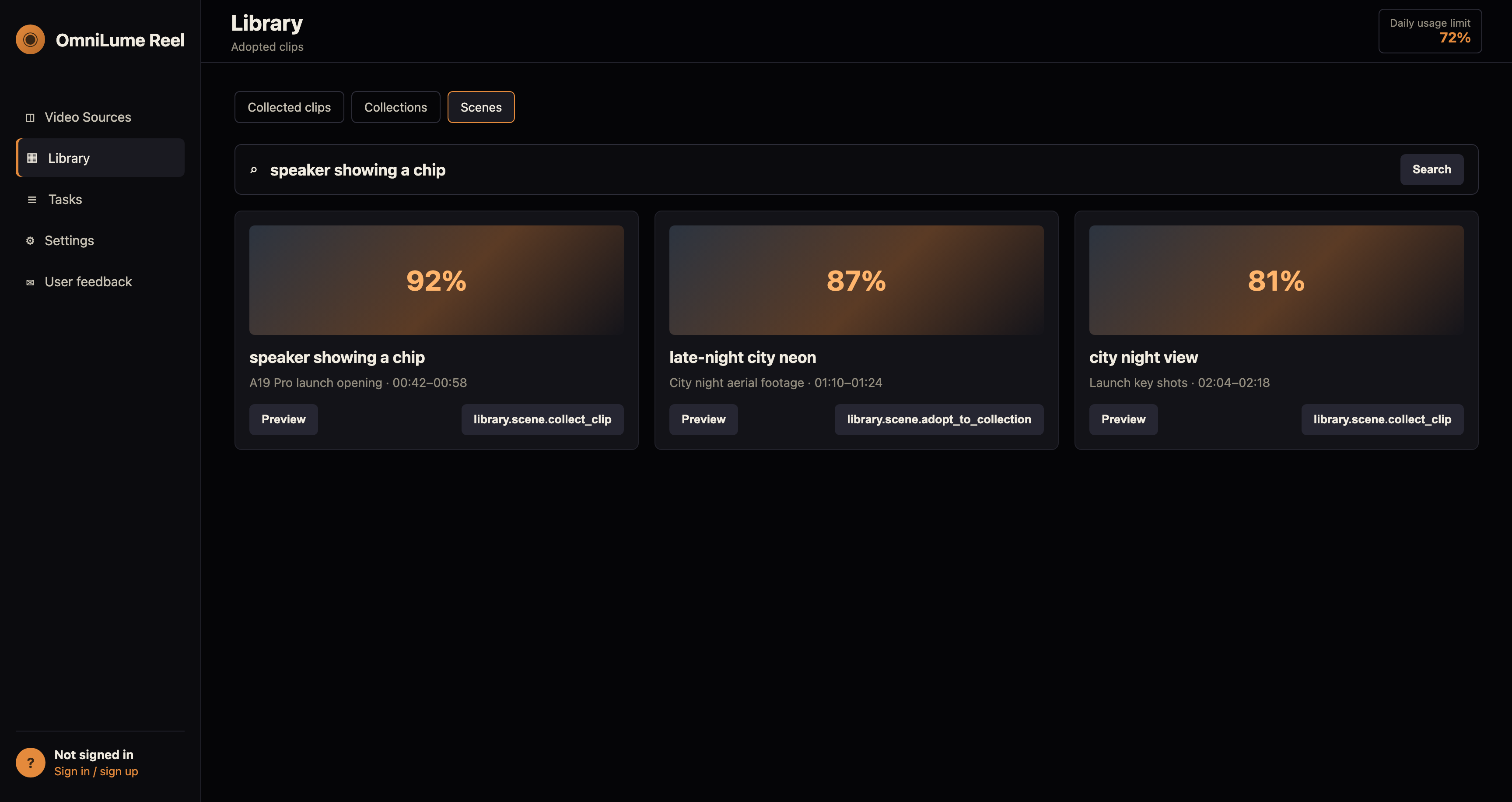
7. Export selected (3)
No clips collected yet. Search scenes, then click Collect clip. Collect clip → Export selected (3).